Solid colors
White and RGB screens expose dark or incorrectly colored pixels. Black reveals hot pixels, glow and edge bleed.
Check your MacBook Air or MacBook Pro display with fullscreen colors, gradients and motion patterns. Find dead pixels, uneven brightness, backlight bleed and banding before your return or warranty window closes.
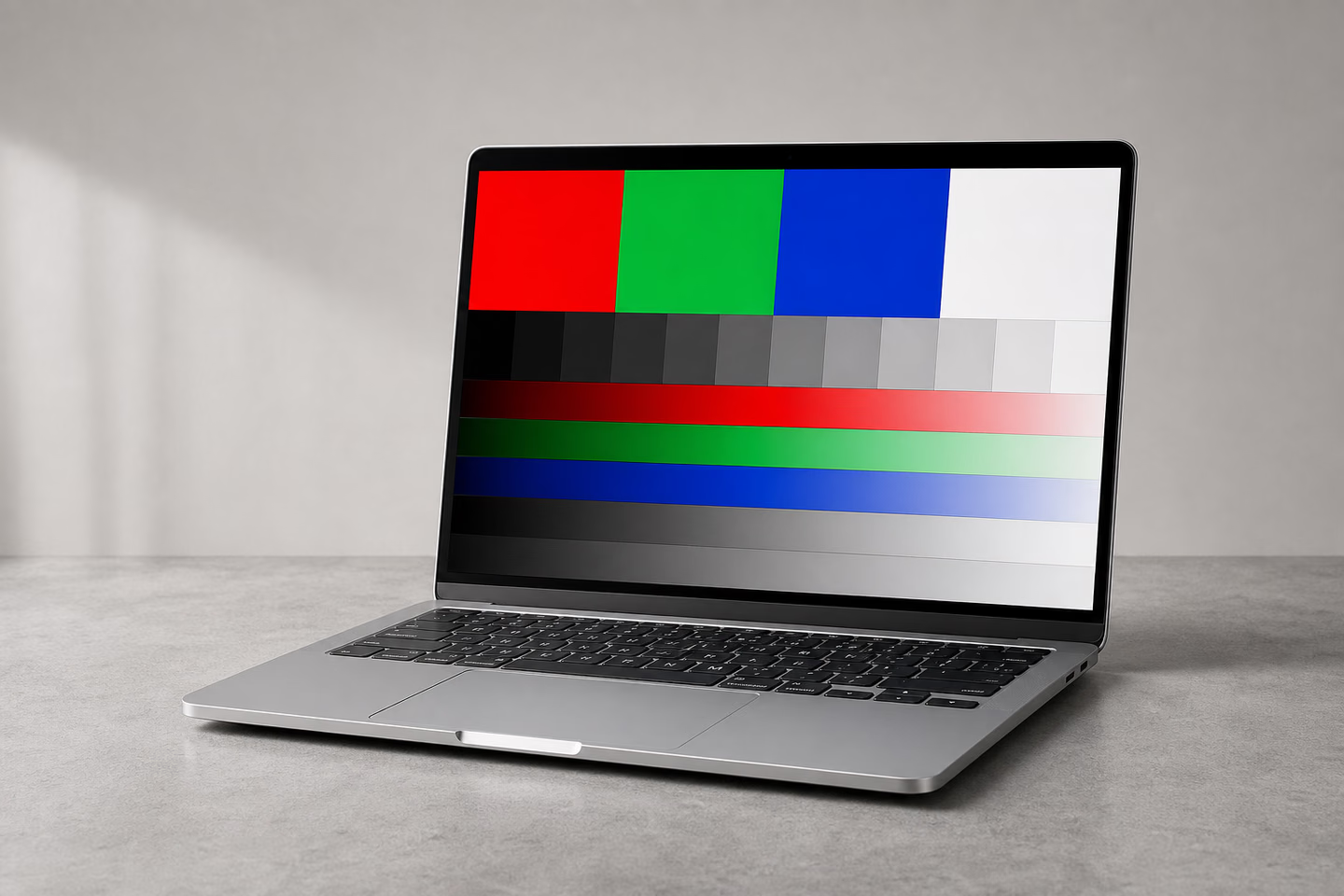
Click any tile to begin. Use the arrow keys or Space to move between tests, P for auto-play, I for display information and Esc to leave fullscreen.
Check for dead pixels, bright spots, and color uniformity
Check for banding, gamma, and smooth transitions
Check geometry, sharpness, and pixel alignment
Check the gray ramp, posterization, and shadow / highlight detail
Check full black/white swing and fine 1px transitions
Check clouding, backlight bleed, vignette, and IPS glow
Check text clarity, color fringing, and scaling
Check pixel response time and motion blur
Check flicker and refresh-rate artifacts
Use a dry microfiber cloth, then let the display run for 10-15 minutes.
Temporarily turn off True Tone, Night Shift and automatic brightness in System Settings.
Launch each pattern fullscreen and check the panel from the center, edges and corners.
Inspect once near 50% brightness and again near maximum to reveal different uniformity issues.
White and RGB screens expose dark or incorrectly colored pixels. Black reveals hot pixels, glow and edge bleed.
Look for abrupt steps, tinted gray areas or lost shadow detail instead of a smooth transition.
Fine grids and text help identify scaling softness, image retention and inconsistent sharpness.
Moving shapes reveal smearing and response artifacts. Compare results at your MacBook's available refresh rates.
Tip for Liquid Retina XDR models: local dimming can make bright objects on a black background appear to glow slightly. Compare several patterns before treating blooming as a defect, and document persistent issues with a camera for Apple Support.
Free browser-based utilities for testing, lighting and creating screen backgrounds.
Open any solid color full screen or download it as an image.
Turn your display into an adjustable warm or cool light source.
Build, preview and export smooth two-color backgrounds.
Inspect resolution, pixel density, viewport and display capabilities.
Clean the display, open this page in Safari or Chrome, launch each solid-color test in fullscreen and inspect the entire panel. White, black, red, green and blue screens make dead, stuck and hot pixels easier to identify.
Yes. The test runs at the browser's fullscreen resolution and works with Retina, Liquid Retina and Liquid Retina XDR MacBook displays. It requires no download or color-profile change.
Turn off True Tone, Night Shift and automatic brightness while checking color, grayscale and uniformity. You can leave them on for a second pass that reflects your normal daily setup.
A truly dead pixel is a hardware defect and normally cannot be repaired by software. A stuck subpixel may sometimes recover after controlled color cycling, but persistent defects should be documented for service or warranty support.
MacBook, MacBook Air, MacBook Pro, Retina and Liquid Retina are trademarks of Apple Inc. This independent browser tool is not affiliated with or endorsed by Apple.